Read and Write Data
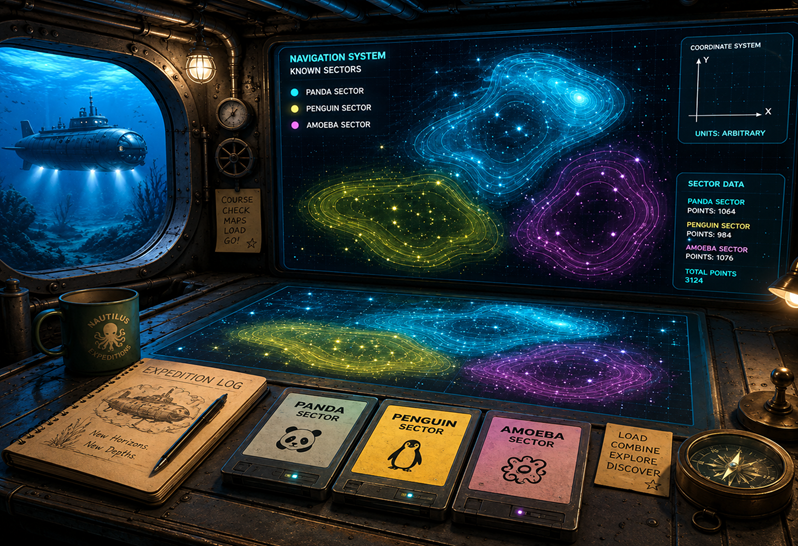
Navigation Map Data
The submarine was safely in the harbor. The ship’s computer was up and running. It was time to inspect the course for the journey. Aarla pulled out three boxes. They contained data discs with maps of the known parts of the ocean. All she needed to do was load the data into the ship’s computer. Of course, the crew had bought the maps in some shady corner of the harbor, so the data was far from standardized.
Aarla explained to Ming Ming:
"Before the submarine can travel anywhere, we need to set a course. Our map data contains all known underwater landmarks, and a few dangerous places. To find out where we are going, you need to load the map data from three regions:"
the amoeba sector (
amoeba_sector.json), the home ocean of the polarsthe panda sector (
panda_sector.csv), a remote southern seathe penguin sector (
penguin_sector.xlsx), a largely undiscovered ocean
Read CSV files
The read_csv function is often the first command used. It has a lot
of optional parameters, two of which are shown here:
import polars as pl

df = pl.read_csv('panda_sector.csv', separator=',', has_header=True)
df is a DataFrame, a fundamental data structure in polars.
For most practical matters, it works like a table.
How can I check what is in a DataFrame?
After reading data into a DataFrame, you might want to see what is inside. It is a good idea to do that right away. In Jupyter, you would type into a cell:
df
and in a regular Python script you need an extra print statement:
print(df)
To see the number or rows and columns, use:
df.shape
Use print() in the same way if you are working outside a Jupyter notebook.
This won't be mentioned from now on.
Read Excel files
The polars library does not have a native Excel reader. Instead, it uses an external library called an "engine" to parse Excel files into a form that polars can parse.
Here, we are using the default fastexcel engine. The xlsx2csv and openpyxl engines are slower but may have more features for parsing tricky data.
df = pl.read_excel('penguin_sector.xlsx', engine='fastexcel')
Note
You may need to install an extra library to read Excel files.
If you get error messages about missing dependencies, try installing the fastexcel engine:
pip install fastexcel
Read JSON
Polars expects JSON to be row-oriented. If the JSON file contains column-oriented nested dictionaries, you must convert it to rows first.
import json

with open("amoeba_sector.json") as f:
   data = json.load(f)

rows = [
 {col: data[col][idx] for col in data}
 for idx in data["name"]
]
df = pl.DataFrame(rows)
If the JSON is already row-oriented, you can read it directly
df = pl.read_json('amoeba_sector.json')
Concatenate multiple DataFrames
When reading multiple tabular files that have the same structure, it is sometimes straightforward to combine them into a single DataFrame:
df = pl.concat([df1, df2, df3, ...])
Writing Files
For writing a DataFrame to an output file, there is an equivalent set of functions:
df.write_csv("deep_sea.csv")

df.write_excel("deep_sea.xlsx")

df.write_json("deep_sea.json")
See also
Recap Exercise: Read and Write DataFrames
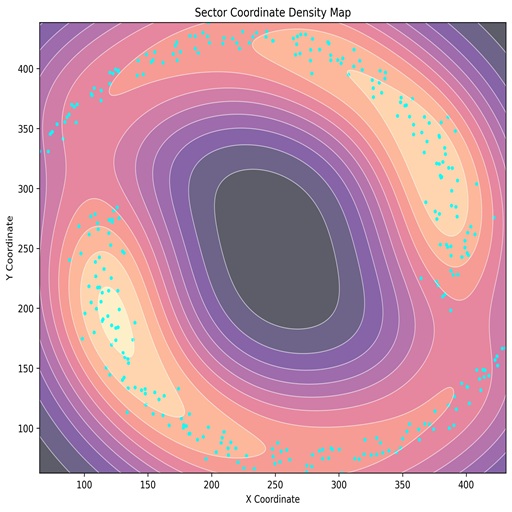
Aarla called her intern to the bridge.
"Ming Ming, I need you to run a safety check on our navigation data. Normally, Andromé, our navigator, would do this. But you might as well take care of it. Read the data for the penguins sector and make sure the number of landmarks is the same in all formats."
Read the file penguin_sector.csv into Python:
import polars as pl

df = pl.read_csv('penguin_sector.csv')
Solve the following tasks:
# 1. write the data to a CSV file
df...

# 2. read the CSV file to a new DataFrame
...

# 3. write the data to an Excel file
...

# 4. read the Excel file to a new DataFrame
...

# 5. write the data to a JSON file
...

# 6. read the JSON file to a new DataFrame
...

# 7. check the rows and columns of one DataFrame.
df.shape